Make handwritten reMarkable PDFs searchable on a Mac
You wrote a word on your reMarkable. Weeks later you search for it on your Mac, and nothing comes up. The PDF of the page shows your handwriting, but to a search it is a drawing, and a drawing has no words.
The advice you find for this is old and manual: type out the page yourself, then lay the text over it as invisible text. Then the PDF looks the same, and search finds the words.
I make Tagged Sync, an Obsidian plugin that syncs a reMarkable into a vault, so this is a how-to written by the plugin’s maker. Version 1.9.0 does that step for you on every sync, using the transcript you already have. You need no extra app.
The text layer is free: on a Mac, every PDF of a handwritten notebook or page the plugin writes carries your transcript as invisible, searchable text, whichever backend read it. On Windows and Linux the PDF has no text layer yet; the transcript under the note is still searchable. The plugin has a paid Pro tier; nothing in this article needs it.
In short, a handwritten PDF becomes searchable once it carries a text layer, a hidden copy of the words on the page. On a Mac, Tagged Sync writes that layer for you, and it takes three steps:
- Install Tagged Sync from Obsidian’s community plugins, or update it to 1.9.0.
- In the plugin settings, map a tag to a vault folder; tag a notebook with it on your reMarkable and sync.
- Search: Spotlight lists the PDF, and
Cmd+Fin Preview or in the note highlights the word.
Why isn’t my reMarkable PDF searchable?
A reMarkable does not store letters. It stores the strokes of your pen. A PDF of a handwritten page draws those strokes as lines, so it looks right and contains no text.
A searchable PDF has a second layer: the same words as text, invisible, each one laid over the spot where it is written on the page. Search reads that layer. Scanners make one by recognising printed letters. For handwriting, something has to read it first.
Reading handwriting is a step of its own. Turning reMarkable handwriting into text covers what the tablet does by itself and what the plugin adds. Tagged Sync already writes a transcript under the pages it syncs. Since 1.9.0 it also puts that transcript into the PDF.
How do I search handwriting in a PDF on a Mac?
Open the PDF and press Cmd+F. In Preview or in Obsidian’s PDF viewer, type a word you wrote. The
word is highlighted on the page, on your handwriting. Without the layer, the same search finds
nothing, and Preview cannot even select a word.
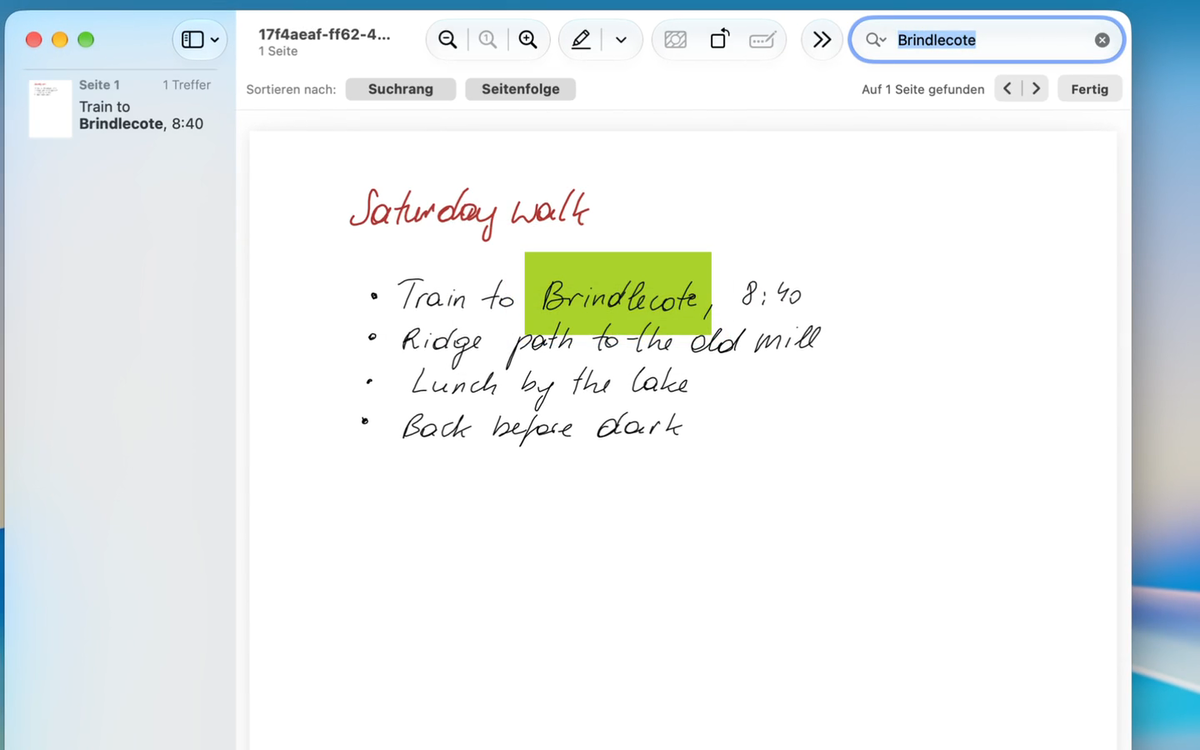
There is nothing to switch on. Update the plugin to 1.9.0 and sync. Notes you synced before get the layer on the first sync after the update. A note you edited by hand is skipped, as always, and keeps its PDF without the layer until you run Re-transcribe this note on it.
The page looks exactly as before. The plugin still draws your strokes as lines, and the text sits on top, invisible. Apple Vision finds where each word sits on the page, whatever transcription backend you chose. The words themselves come from your backend’s transcript. So the PDF says what your transcript says, misread words included. How well each backend reads handwriting is on the accuracy page.
Apple Vision reads each page on your own computer to place the layer; nothing leaves your machine. The transcript itself is read on your own computer too, unless you choose a cloud model yourself.
Where the layer falls short
- Only handwritten notebooks and pages get a layer. Handwriting on a typed document, and notes in the margin of a PDF or book, get none.
- Words Vision cannot place are left out of the layer. They stay in the transcript under the note.
- In a table, a word can land in the wrong cell.
- A letter the PDF’s standard font cannot write is written without its accent: Łódź is in the layer as Lodz.
- Preview’s search tells accents apart, so searching for Gruße does not find Grüße. Preview causes this.
Find a handwritten note with Spotlight
Press Cmd+Space and type a word you wrote on the tablet. The PDF is in the list, next to the note
it belongs to. Open the PDF, press Cmd+F, type the word again, and Preview highlights it on the page.
Spotlight does this on its own. It already indexes the text in the PDFs in your vault, and now your handwriting is part of that text. Nothing extra runs in the background, and there is no index of the plugin’s own. If your vault sits in a folder you have kept out of Spotlight, Spotlight will not find it there either.
Can I search handwritten notes in Obsidian?
Yes, in two places. Obsidian’s search pane does not look inside PDFs, but it finds the transcript
under the note, so the note itself turns up. Open it, click into the embedded page, and press
Cmd+F: the PDF’s search bar opens and highlights the word on the page, right where you wrote it.
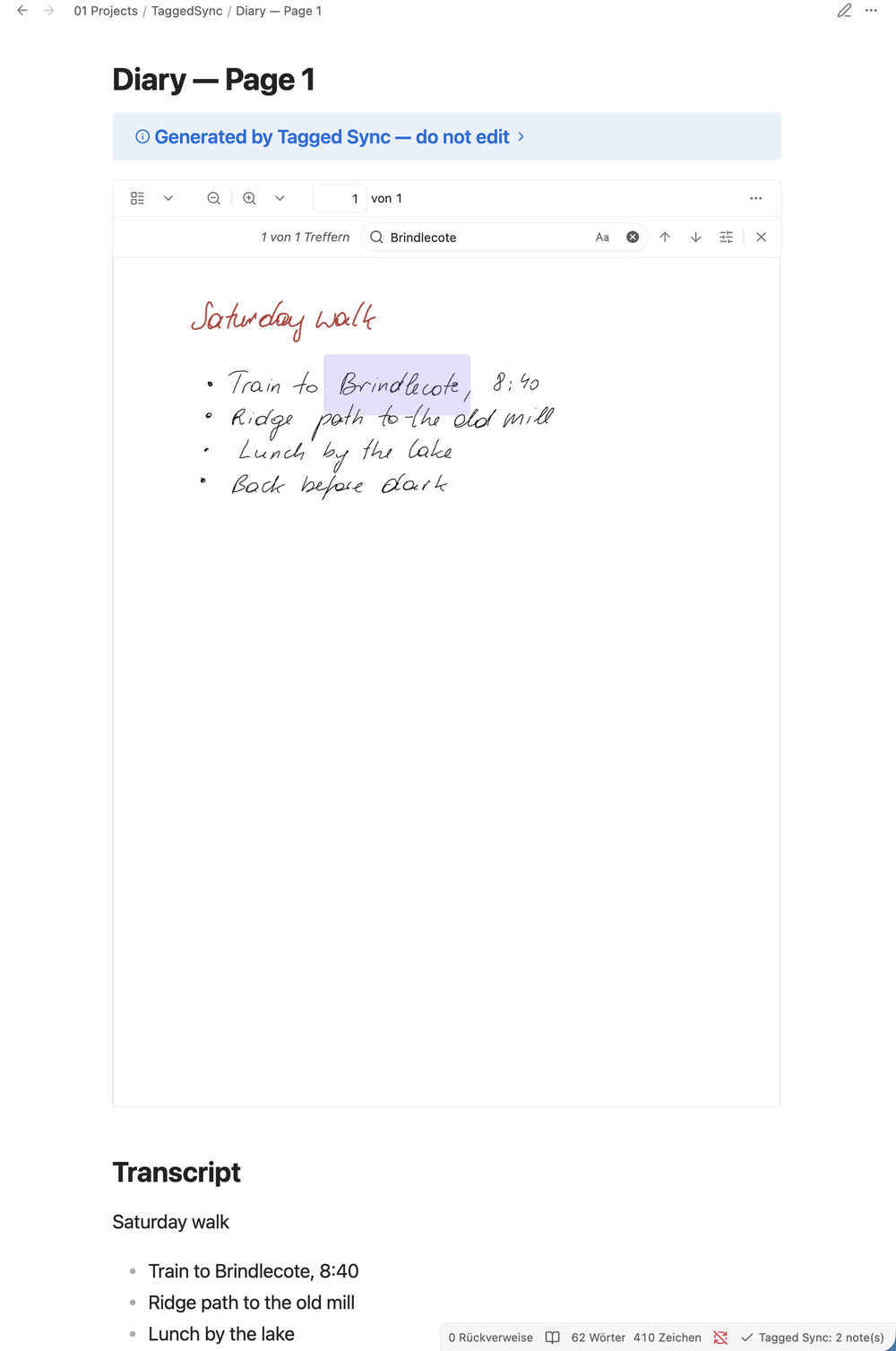
Search in the PDF viewer works on the desktop only. Obsidian’s app on a phone has no search in its PDF viewer; there the search pane still finds the transcript.
A community plugin that searches with Spotlight from inside Obsidian can list the PDF as well.
Install Tagged Sync from Obsidian’s community plugins, or see taggedsync.com for details. On a Mac, the next sync makes your handwritten PDFs searchable. Where do you look today when you need one thing you wrote weeks ago? Tell me by mail.