How to sync reMarkable to Obsidian, step by step
You write on your reMarkable, and you want those pages in Obsidian, where you can search them and link to them. reMarkable has no official way to do this. You can email a page, or send it to Google Drive, Dropbox or OneDrive. But you do that for each page, and you still have no note in your vault.
I make Tagged Sync, an Obsidian plugin that does this sync, so this is a how-to from the plugin’s maker. The plugin is free. Nothing in these steps needs the paid Pro add-on.
In short:
- Install Tagged Sync for reMarkable from Obsidian’s community plugins and connect your reMarkable account.
- On the tablet, put a tag such as
syncon a notebook or a PDF. - In the plugin settings, map that tag to a vault folder and click Sync.
What do you need?
- Obsidian 1.13.4 or later on a desktop computer with Windows, macOS or Linux. Obsidian on a phone or tablet is not supported.
- A reMarkable 1, 2, Paper Pro or Paper Pure.
- A reMarkable account with cloud sync switched on.
You do not need a reMarkable Connect subscription.
How do you connect the plugin?
- In Obsidian, open Settings, then Community plugins. If Obsidian asks, click Turn on community plugins.
- Click Browse and search for Tagged Sync for reMarkable. Click Install, then Enable.
- Open the plugin’s settings and follow the Connect link to
my.remarkable.com/device/browser/connect. This page gives you a one-time code. - Enter the code and click Connect. A code expires after a few minutes, so get a new one if it is refused.
How do you choose what syncs?
You choose with a tag. On the tablet, tag a notebook, a PDF, a single page or a whole folder. Then let the tablet sync to the reMarkable cloud as usual.
A tagged folder passes its tag to everything inside it, including the folders below it. Look at how much is in a folder before you tag it.
Back in Obsidian:
- Under Tag routing, click the refresh icon to scan for tags.
- Click your tag and choose a vault folder for it. The folder must already exist, so create it first if you want a new one.
- Click Sync beside Sync now.
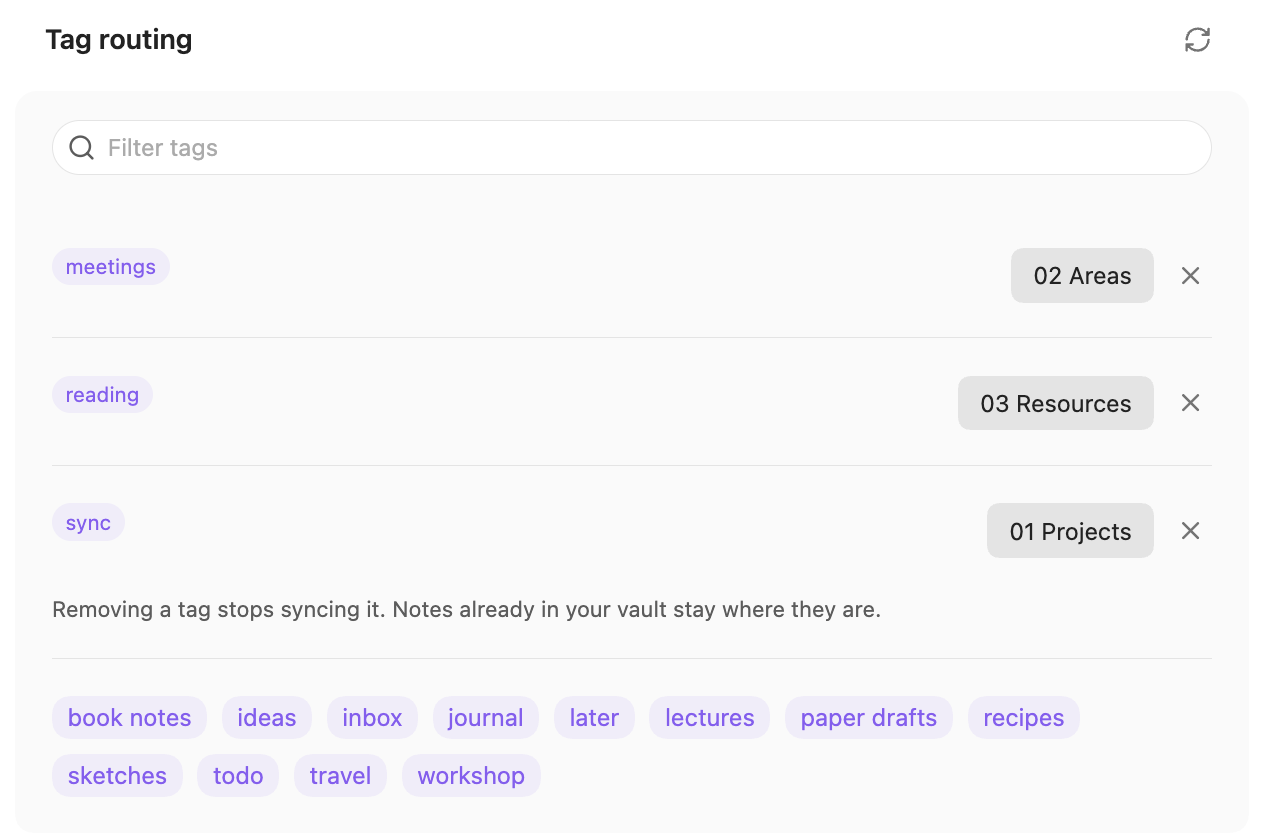
Only a mapped tag syncs, and everything else stays on the tablet only. The free plugin maps one tag to one folder. Pro maps as many as you like.
You can also run Sync now from the command palette. Automatic sync is off by default. Under Automatic sync, you can turn on a sync when Obsidian starts, plus a regular sync while it is open. With a local model or a local server, also turn on Allow automatic sync with this backend, or automatic sync does nothing.
What arrives in your vault?
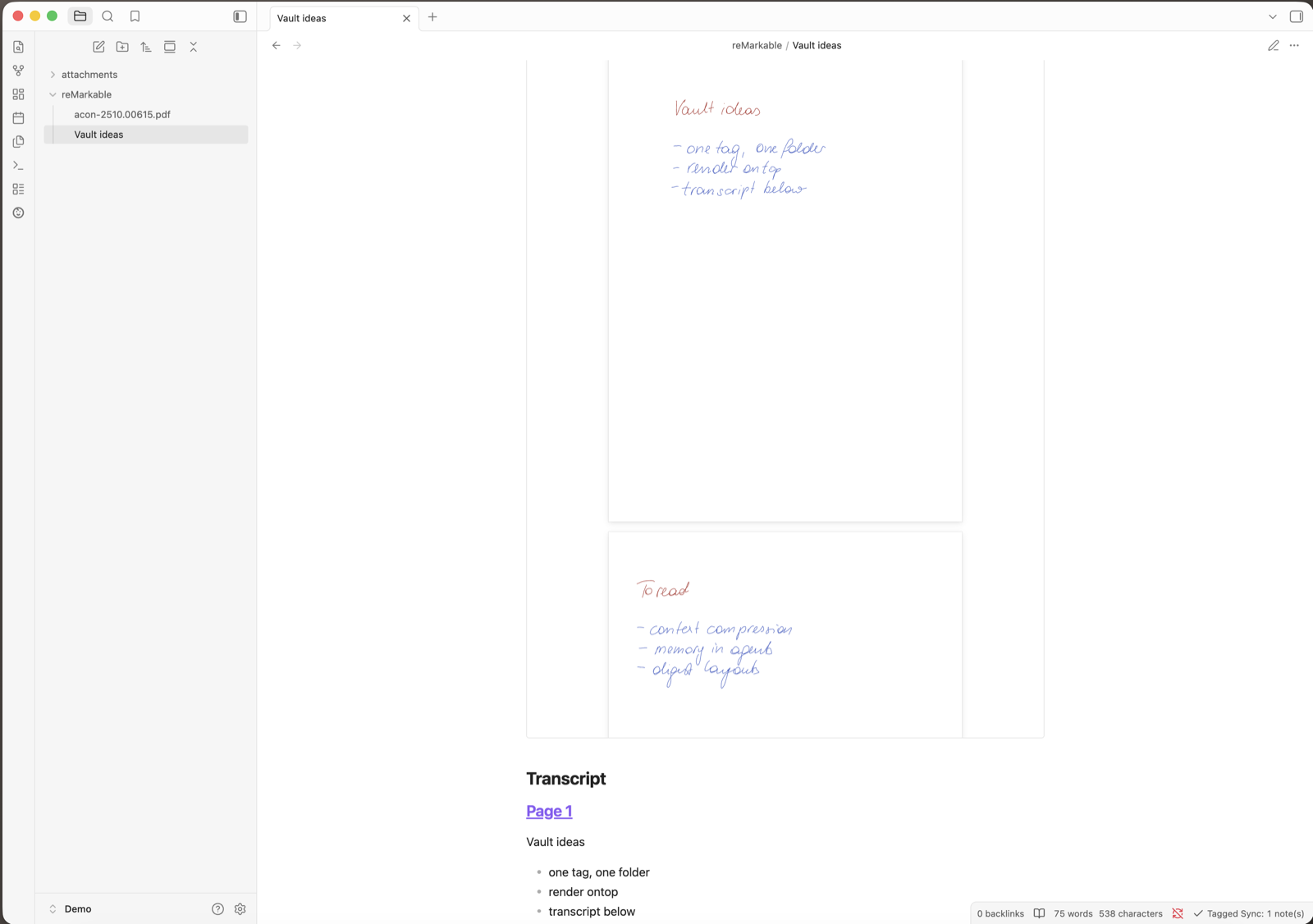
A handwritten notebook becomes one note. Your pages are embedded at the top as you drew them, and the transcript is below them, split by page. Obsidian’s search finds the transcript like any other text, and you can link to it.
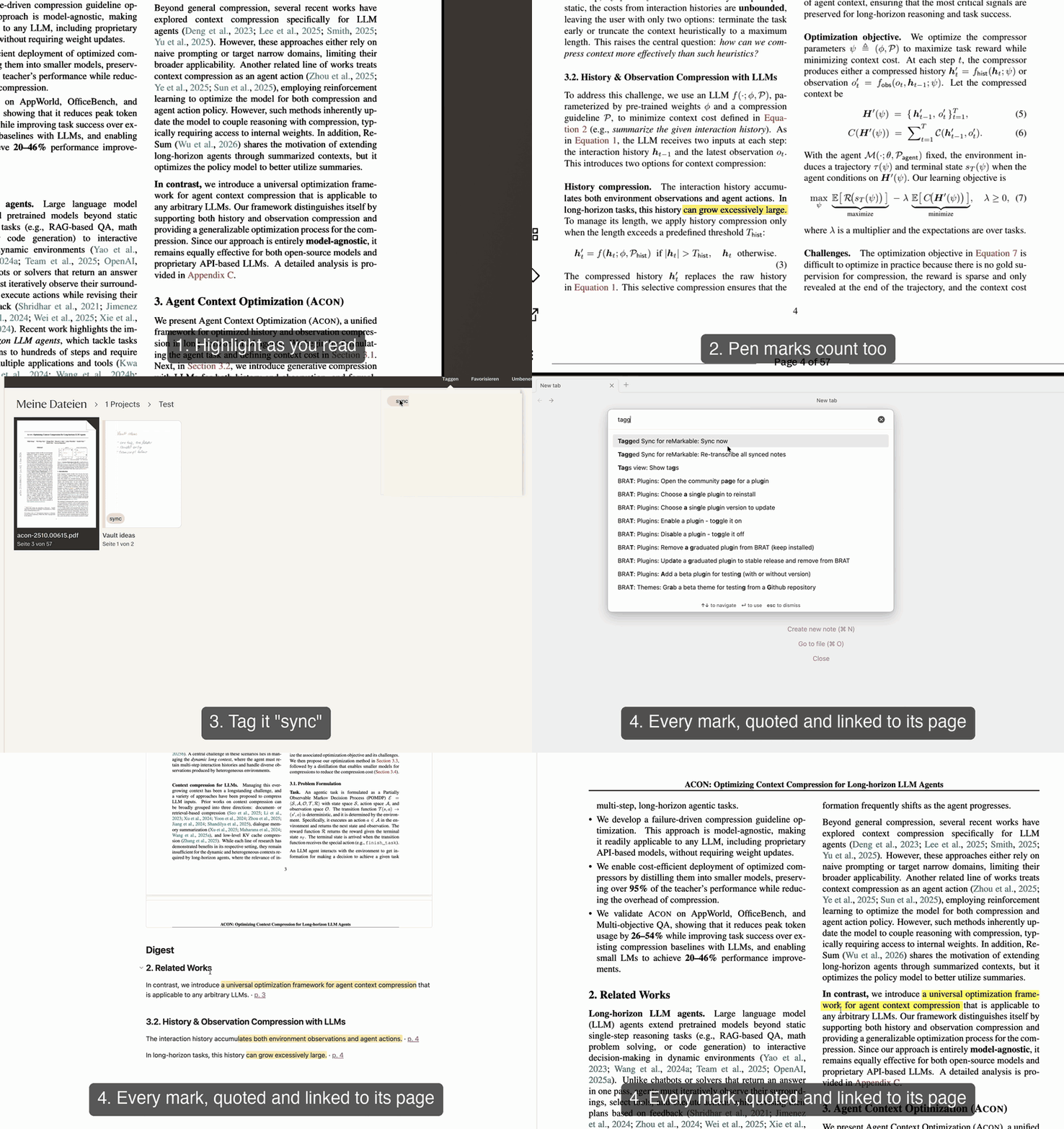
A PDF you marked up gets a digest instead of a transcript. Every passage you highlighted or underlined is there as a quote with the text around it, under the section it came from. Each quote has a block ID, so you can link to one passage from anywhere in your vault. An EPUB works the same way, with the book’s own chapter names.
PDF highlights in Obsidian covers this part in more detail.
What reads your handwriting?
That depends on your computer. All three options below run on your own machine, and no page leaves it.
- On a Mac with macOS 13 or later, Apple’s built-in recognition is the default. You set nothing up. The text comes out flat, with no headings, lists or tables.
- On Apple silicon with 8 GB of memory, or Windows on Arm with 16 GB, you can choose a local model instead. It is a download of 1.6 to 6.2 GB, and it reads better but more slowly.
- On any computer, you can point the plugin at a local server you run yourself, such as Ollama or LM Studio. On Windows on x64 and on Linux, this is the only free way to get a transcript.
Until one of these is set up, a notebook still syncs with your pages, but without text. A marked-up PDF still gets its digest, because that comes from the text in the PDF. A scan that is only a picture gives less: highlights arrive as the words your tablet recorded, and pen marks are not picked up. What you wrote on a PDF is left out unless you turn on Your notes on PDFs, and that needs one of these options too.
Pro adds cloud models with your own API key. These send the page to the provider you choose, and they are off unless you turn them on.
Every option makes mistakes. On my test pages, Apple’s recognition gets about 19 % of characters wrong on a typical page, and Claude and Gemini get less than 2 %. Crossed-out words, margin notes and drawings read worst. The accuracy page has the numbers for each page. Check anything important against your handwriting.
Can you edit a synced note?
Keep your own writing in a separate note and link to the synced one, because a sync rewrites a synced note from scratch.
If you do edit a synced note, for example to fix a misread word, the plugin notices and does not overwrite your edit. That note stops updating until you undo the change.
What does the plugin not do?
- It runs on the desktop only.
- It syncs one way. A sync never changes anything on your tablet.
- It does not delete notes. If you remove a tag, the note stays in your vault and stops updating.
- It depends on the reMarkable cloud by default, and reMarkable does not document that interface. In April 2026 a format change broke every tool of this kind. Your synced notes stay safe in your vault when this happens, but syncing can stop until there is a fix.
With Pro, the plugin can read the tablet directly over USB or Wi-Fi, without the cloud. On a Paper Pro or Paper Pure this needs Developer Mode, and turning that on erases the tablet.
What other ways are there?
Other tools can do this too, and one of them may suit you better.
- You can do it by hand. Email a page or send it to a cloud folder from the tablet. This is free and needs no plugin. There is no Markdown export, so you still have to bring the file into your vault yourself.
- Scrybble is a service with an Obsidian plugin, at €2.29 to €3.99 a month. It converts your pages on its own servers, so you have little to set up. Its site lists handwriting to Markdown text as coming soon. My comparison with Scrybble goes through it fact by fact.
- KeyStone’s reMarkable Sync is a free, open-source plugin that syncs your documents as high-quality PDFs. Its page does not mention a transcript. If you only want the pages, it is worth a look.
I built Tagged Sync because I wanted searchable text made on my own computer, from only the pages I tag. The longer story is here. If you want that too, install it from Obsidian’s community plugins. The FAQ has more about setup.