Zotero and reMarkable: an integration that sends highlights back
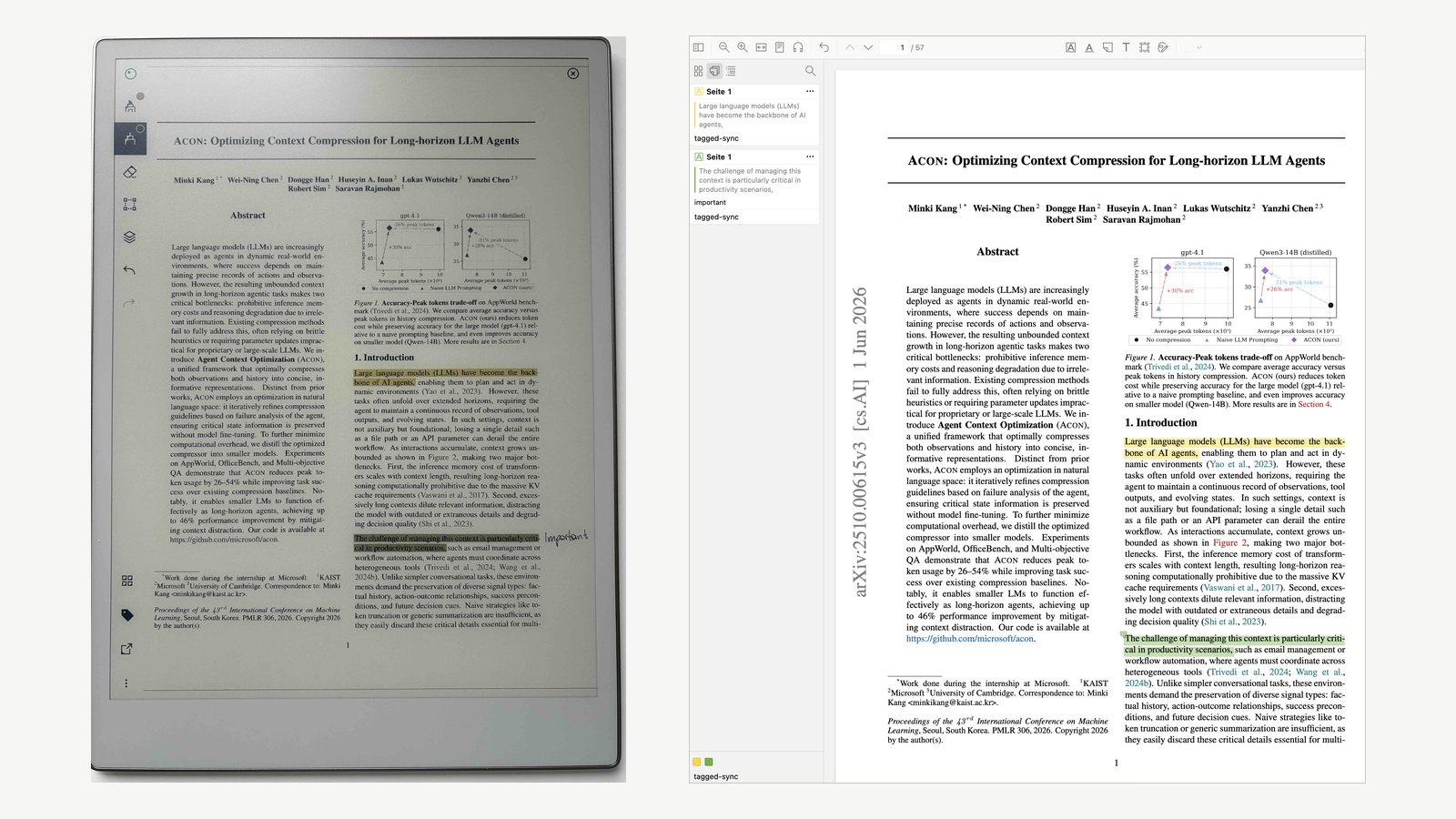
PDF shown: Kang et al., ACON: Optimizing Context Compression for Long-horizon LLM Agents, CC BY 4.0.
Tagged Sync’s Zotero and reMarkable integration sends a paper from Zotero to a reMarkable and brings the annotated highlights back as Obsidian quotes and Zotero annotations.
On a reMarkable, “these highlights aren’t recognized as actual text highlights in standard PDF readers. Instead, they’re just visual overlays — essentially colored rectangles drawn over text.” That is how one reader on r/RemarkableTablet put it, and Zotero sees it the same way. The marked-up paper stays on the tablet, and nothing comes back.
The Zotero forum’s answer to “Zotero on a reMarkable?” has been “closed platform, no” for four years. The community’s answer is: get a Boox or an iPad. The do-it-yourself answer is a Python script that needs Zotero closed while it runs. Two Zotero plugins now bring marks back into Zotero, one of them as native annotations, both from inside Zotero and both early. No Obsidian plugin sends the marks back.
The missing step
I started using Zotero at university, a long time ago. Most of what I learned then has faded; Zotero stayed. Later came Obsidian, as the place for what I want to keep. This year came the reMarkable.
Papers go from Zotero to the tablet. I skim them there, drop most, and read the rest in the morning or evening, with a highlighter and a pen. Once a week I add the marked papers into Obsidian. That last step was all by hand: export from Zotero, drag into the reMarkable desktop app, retype the marks. The highlights and margin notes stayed on the tablet.
I make Tagged Sync, an Obsidian plugin that syncs a reMarkable into a vault. Version 1.8.0 completes this missing step with Zotero. This is a how-to by the plugin’s maker, not a review.
What you mark on the reMarkable comes back: as quotes in Obsidian, and as real Zotero annotations. The Obsidian half is free. The Zotero half is paid, and this article says so at the step where it happens.
Update, October 2026 (version 1.10.0). Two of the “not yet” lines further down have come true. A page you insert into the paper on the tablet now arrives in Zotero as a note under it, titled after the page it follows, with your handwriting as text and whatever you typed. And the handwriting itself can reach Zotero: switch on Add the render to Zotero and the PDF as it looks on your tablet, ink and all, sits under the paper as a second attachment, Annotated PDF, kept current on every sync. That one is off by default, part of Pro, and goes to your Zotero Storage at zotero.org. The details are on the Zotero page and in the FAQ, under added pages and the PDF with your handwriting. The steps below are unchanged.
What you need
- A reMarkable: reMarkable 1, reMarkable 2, Paper Pro or Paper Pure.
- A Zotero account, with your library synced to zotero.org. (The free route downloads the PDF from zotero.org when Zotero has a copy there; otherwise Send asks you to pick the file. The send tag, which asks nothing, needs a copy Zotero can hand over.)
- Obsidian with Tagged Sync installed from the community plugins, version 1.8.0 or later.
- A Zotero API key, created at zotero.org under Settings → Security → New Key. Give it write access to your library if you want the Pro write-back later; the free half only reads.
The free route works with Zotero closed and with any Zotero version. Only the desktop-app connection (Pro, Step 5) needs Zotero running; it uses the local API and was tested on Zotero 10.
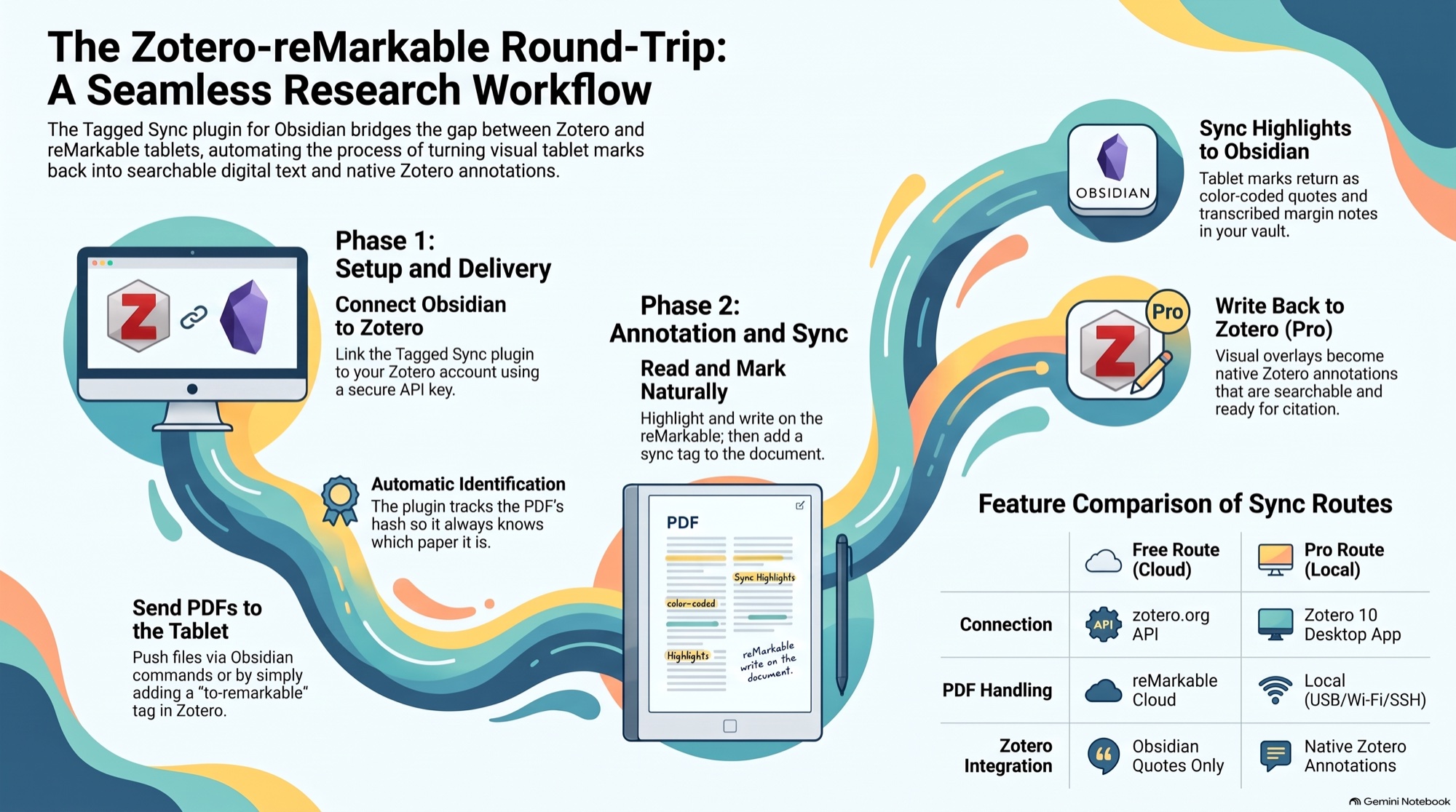
The five steps below follow this picture from left to right.
Step 1 · Connect Zotero to Obsidian
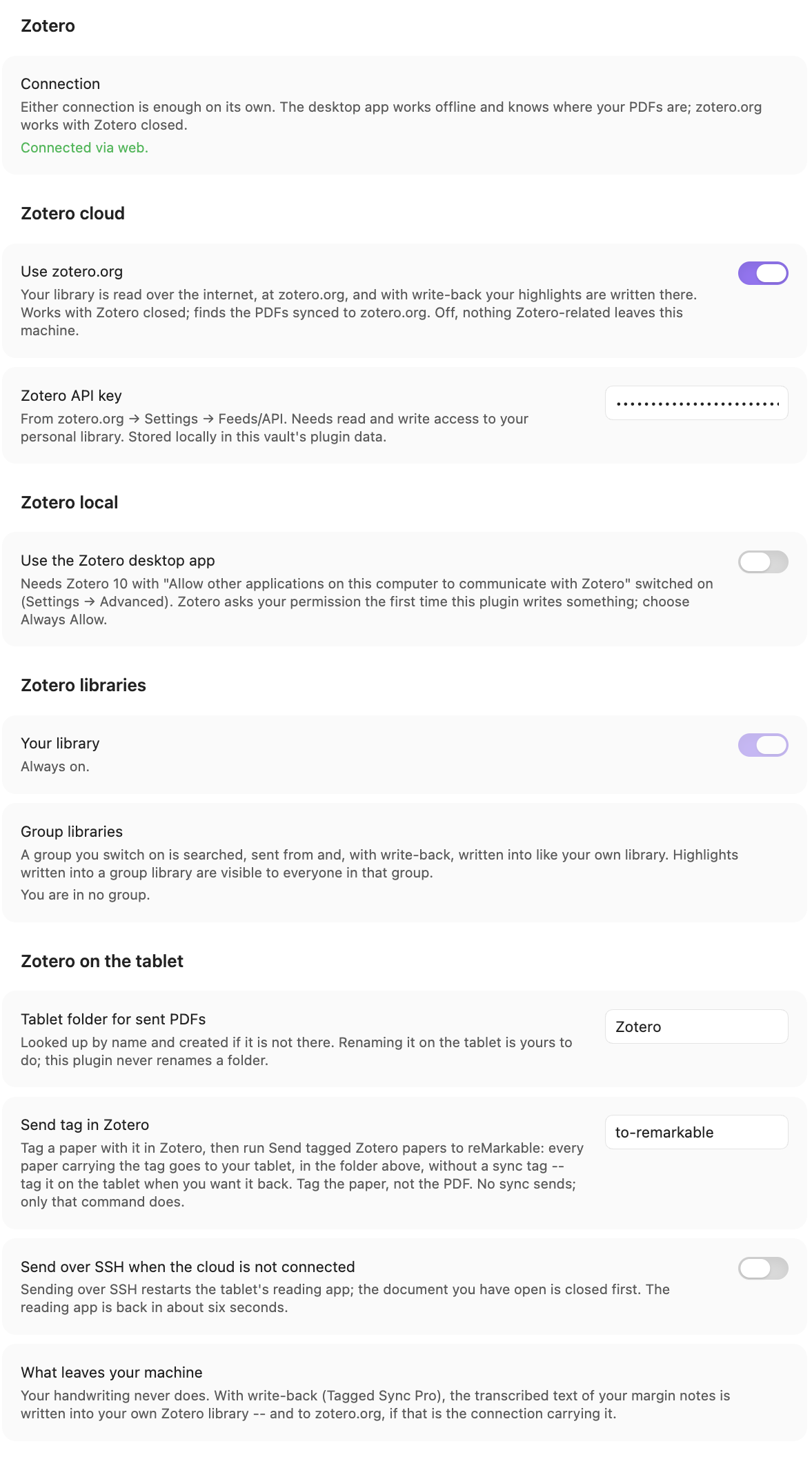
Here is one settings page. Open Settings → Tagged Sync → Zotero. Switch Use zotero.org on and paste your API key. That is all. Zotero can stay open. There is no Python, no script, and nothing to install in Zotero itself.
The scripts that came before required many manual steps. One author describes his own tool like this: “you do have to install Python and a couple of other small things first … Zotero needs to be closed while it’s running … it uses Developer Mode / SSH” (r/RemarkableTablet).
Each connection has its own switch, so whether anything goes over the internet is one thing to look at. The desktop app is the local route; more on that in the Privacy first section below.
Step 2 · Send a paper from Zotero to the reMarkable
Tagged Sync gives you two ways, and neither leaves Obsidian or Zotero.
The usual way to the tablet needs several manual steps. “I have found that the mobile phone rM app and the Zotero iOS (Android) apps work better than RCU for me. If I want to transfer a document … I just open it in the Zotero app, select ‘Export PDF’ and select the rM app” (r/RemarkableTablet).
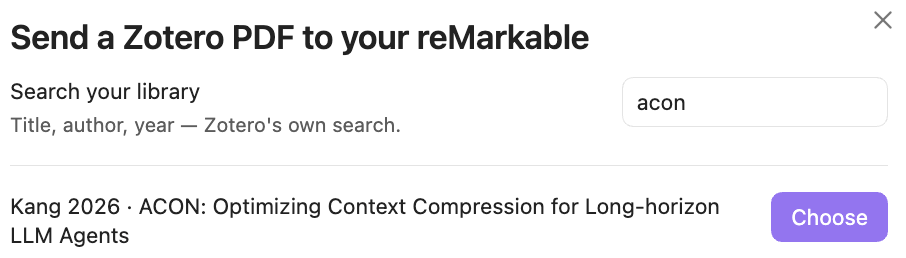
From Obsidian: Send Zotero PDF to reMarkable…
Open the command palette and run Send Zotero PDF to reMarkable…. Search your library, pick the paper, and its PDF arrives on the tablet. It arrives untagged. You give it your sync tag on the tablet when you want it back.
The sync tag is the tag set in Tagged Sync’s settings that marks a document for syncing into Obsidian. The plugin never adds this tag for you. Send only adds, and only when you run it. Nothing on the tablet is changed or removed, and a sync never writes to the tablet at all.
From Zotero: a tag sends the paper
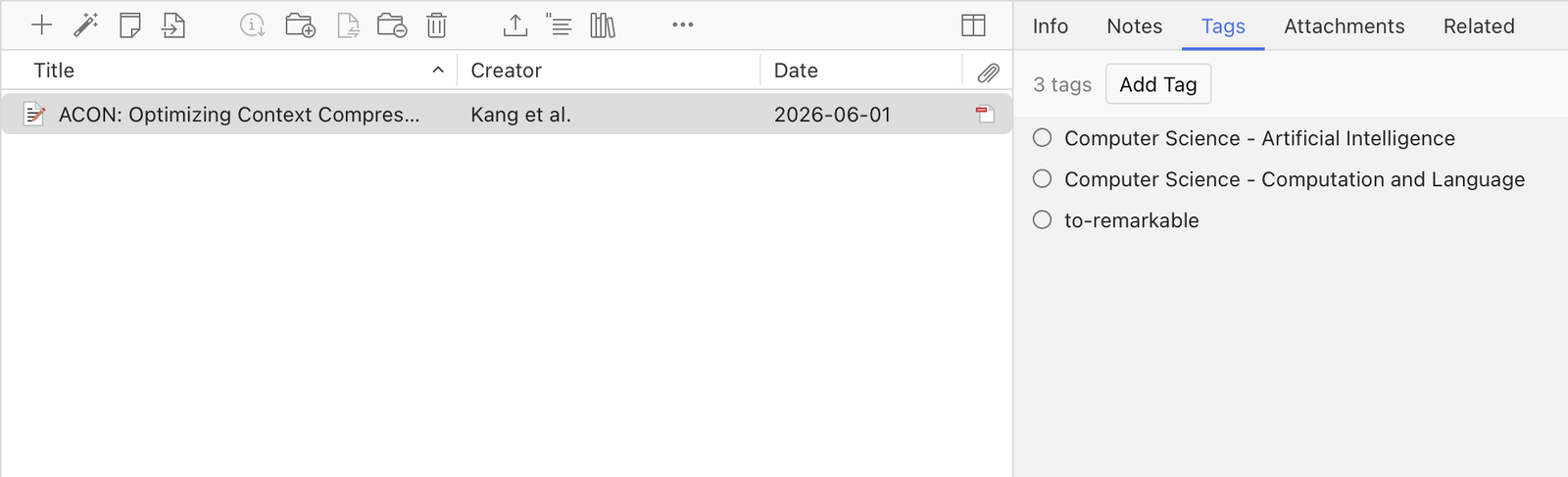
Tag a paper to-remarkable in Zotero. The tag is a setting (Settings → Zotero → Send tag in
Zotero), so you can pick another name. Then, in Obsidian, run Send tagged Zotero papers to
reMarkable.
Every paper carrying the tag lands on your tablet, in the same folder as Send and without a sync tag. Nothing is written into Zotero and the tag there stays. A paper that is already on the tablet is skipped, and the notice says so. A paper with two PDFs is named in the notice and left for Send, which asks. It is a command on purpose: a sync never sends, so the scheduler never puts anything on your tablet.
Step 3 · Read and mark it up on the tablet
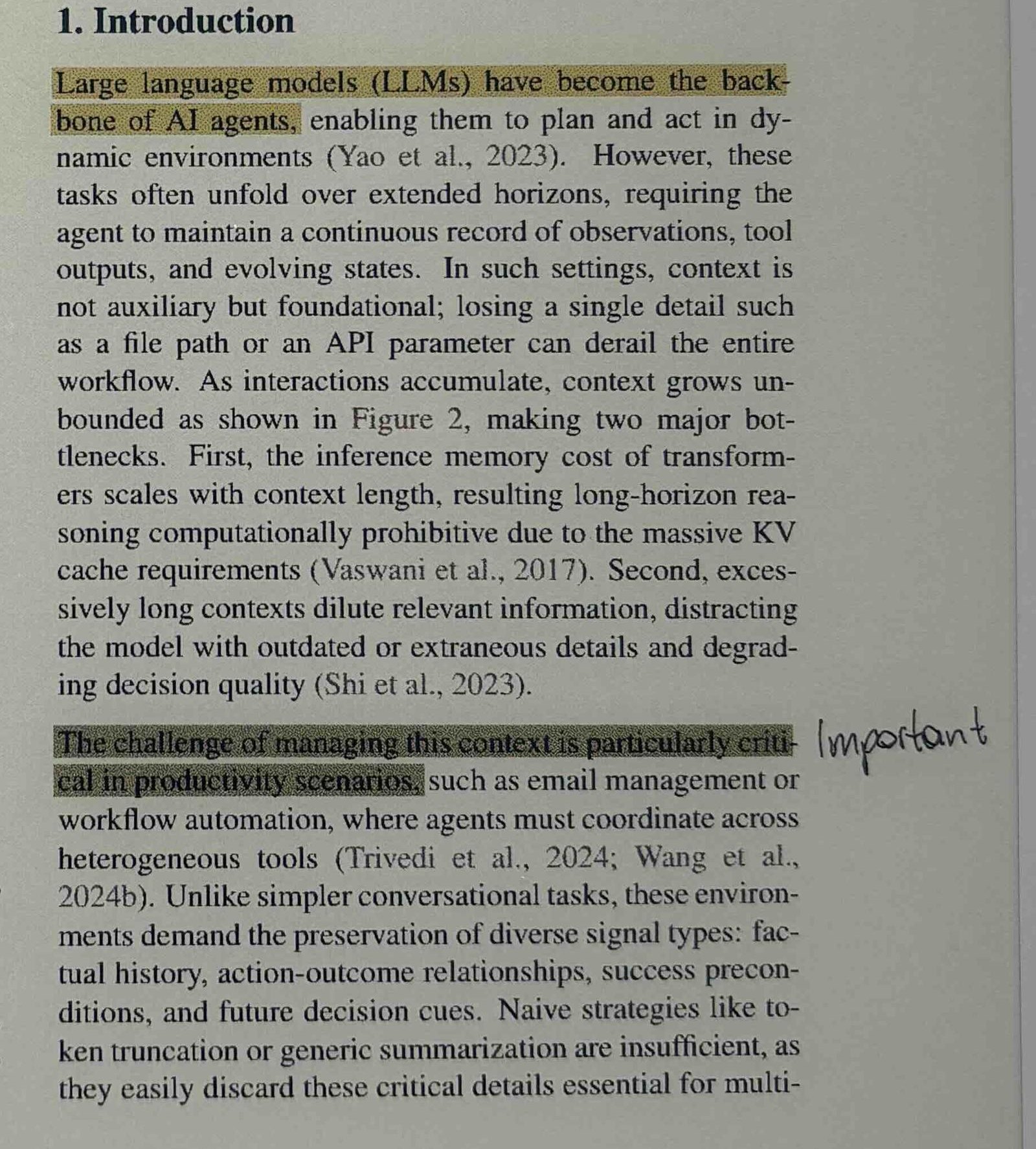
This part you already have. Highlight, underline, write in the margin, as you like. When you want the paper back, give it your sync tag on the tablet.
On a Paper Pro, the pastel highlighters keep their names throughout. On a reMarkable 2, the three highlighter colours — yellow, green, pink, shown as three greys on the tablet — arrive as yellow, green and magenta.
Step 4 · Sync: the note in Obsidian knows which paper it is
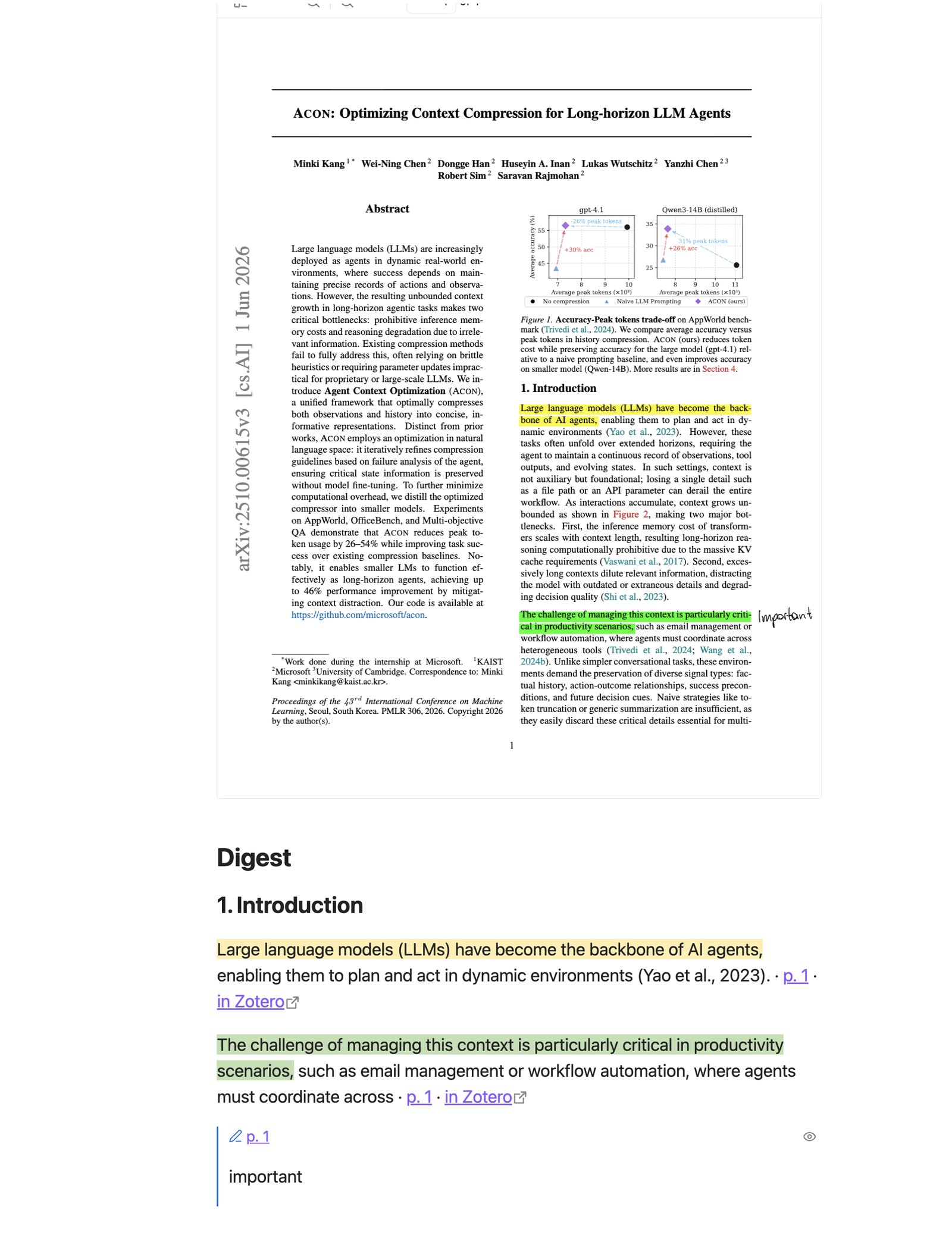
Run the sync. The note arrives in your vault with your highlights quoted, in the colour you chose, and your margin notes transcribed. The plugin recognises the PDF it sent, so the note knows which paper it is. It links back to the item in Zotero and in your web library. A PDF that got to the tablet another way is recognised at sync time too, by the file’s own hash, or by asking you once; if nothing matches, Link to Zotero item… joins them by hand.
“I’ll read a paper, write some thought in Obsidian, then two weeks later have no idea which paper it came from” (r/ObsidianMD).
A highlight you made in green is green in the note. The colours are the same eight Zotero uses, painted by the plugin’s own stylesheet, so there is nothing to install and a theme can restyle them.
Everything up to here is free.
Step 5 · Your highlights become Zotero annotations (Pro)
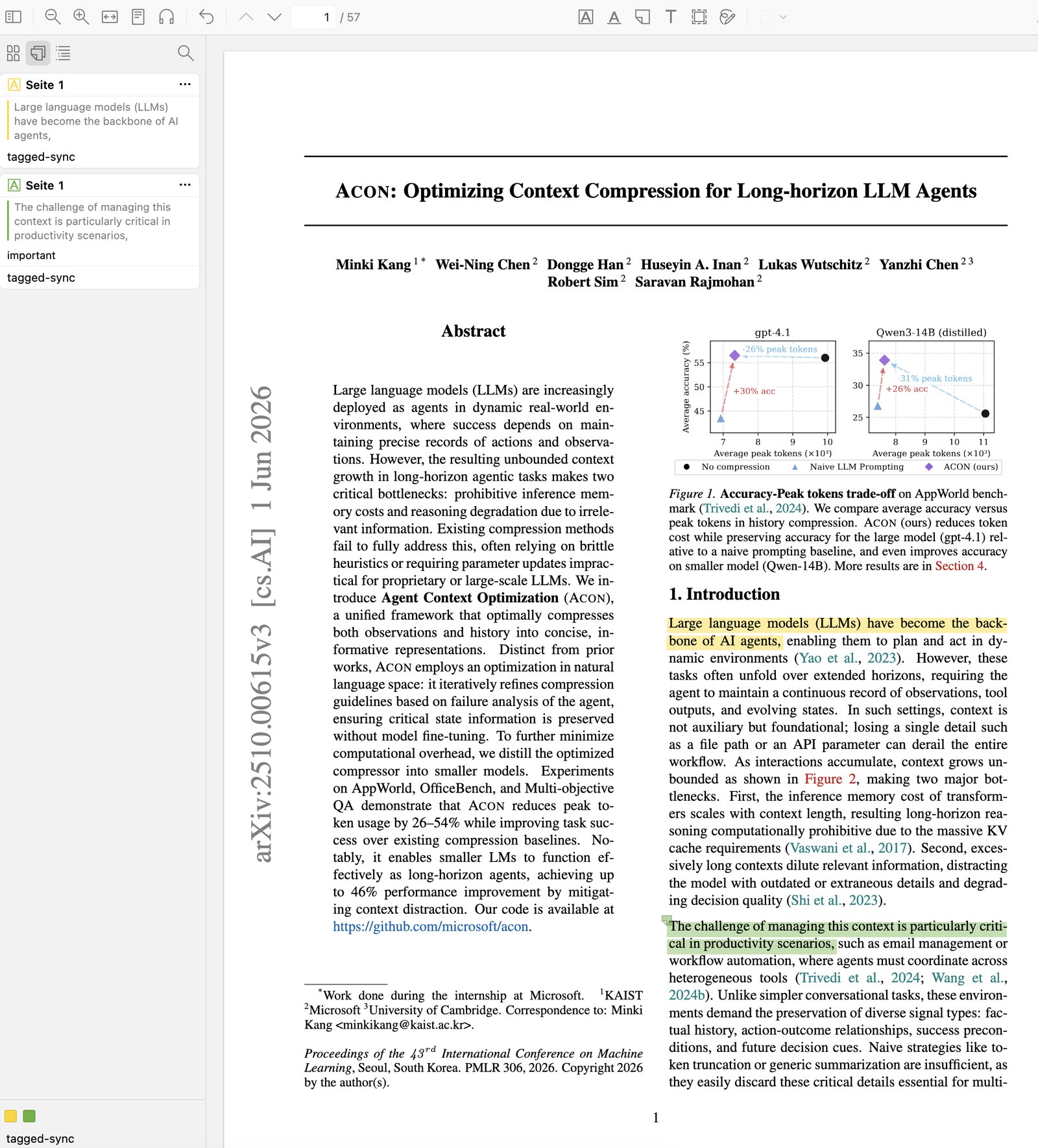
Pro writes what you marked on the tablet into the Zotero item as native highlights, underlines and comments. This step is part of Tagged Sync Pro (paid; a 14-day trial starts with one click in the plugin settings, no key, no email). Everything above it is free.
“Read & highlight PDFs on reMarkable and then have those highlights, or in Zotero speak, annotations, show up in Zotero. … This works, but is a bit too manual” (r/RemarkableTablet).
With Pro there is nothing more to switch on. The same sync that writes the note also writes what you marked on the tablet into the Zotero item, as native highlights, underlines and comments. The coloured rectangles from the top of this page are now text highlights that Zotero can search and cite. Highlight colours arrive as the colour you chose, in Zotero’s eight, matched by hue.
Zotero is never the authoritative source for the note; the annotations there are a copy you may edit. Your edits in Zotero take priority. A highlight you erase on the tablet goes to Zotero’s trash, unless you edited it there. A margin note reaches Zotero as the transcribed text in the annotation’s comment. The handwriting itself did not reach Zotero when this was written; since 1.10.0 it can, as the Annotated PDF in the update at the top.
Zotero 10 desktop app and group libraries (Pro)
The plugin can also talk to the Zotero 10 desktop app instead of zotero.org. Switch on Use the Zotero desktop app on the Zotero page; the app must be running, with “Allow other applications on this computer to communicate with Zotero” on.
Group libraries work too. Under Libraries on the Zotero page, switch on any group your account is in, by name. A group switched on is searched by Send, sent from by the tag command, matched at sync time and written into like your own library. Highlights written into a group are visible to everyone in that group; the setting says so. A group you may only read is named in the note rather than written into your own library.
Privacy first
Rendering runs on your own computer, always. Transcription of your handwritten notes runs on your own computer when you use a local model. With a cloud model, the page image goes to that provider and nowhere else; the plugin has no account and no server of its own.
The free loop uses two clouds. The PDF and your tablet’s pages go through the reMarkable cloud. The Zotero link-up goes through zotero.org with your API key. Each sits behind its own switch on the settings page, so you can see what goes over the internet.
The loop can also be fully local. Connect the tablet over SSH, by USB cable, or your own Wi-Fi. Connect Zotero over the Zotero 10 desktop app on your own computer, and transcribe with a local model. Then nothing in this loop touches the internet, except for the Pro licence check. That check calls polar.sh at most once every seven days, with your licence key and nothing from your notes. The transcribed text of your margin notes also stays on your machine. To be clear: both local connections are Tagged Sync Pro. The cloud routes are free, the local routes are Pro, on both sides.
One sentence sits next to the setting, and it belongs here too: with zotero.org and write-back on, the transcribed text of your margin notes is written into your own Zotero library over the internet.
Zotero 10 broke the old Obsidian bridge — what still works
If you came here from a broken setup, many other people have the same problem. “What is normally a rock-solid connection is now stuck in a recursive loop of sorts” (r/ObsidianMD).
The Zotero Integration plugin for Obsidian, with more than half a million installs, shipped its
last release in August 2024, and its repository has since moved to a community archive. Since
Zotero 9, Zotero cancels requests from the plugin because of the Origin header they carry; the
Better BibTeX maintainer named the fix in
issue #3607: the plugin has to
send the header Zotero asks for. Tagged Sync sends it, and was tested on Zotero 10 over both
connections, zotero.org and the desktop app.
This article does not repair that plugin. For citekeys and literature notes, use ZotLit, which works on Zotero 10 since version 2.1.
Works next to ZotLit — and what it leaves to ZotLit
Tagged Sync is not a citekey importer and not a literature note generator. ZotLit is. The two never write into the same file, and two things work between them without any setup:
- If you already have a ZotLit literature note for a paper, the synced note links to it. The link
appears when that note carries the item’s
zotero-keyorcitekey. - In your own writing, a
[@citekey]from ZotLit sits fine next to an embed of a quote from the tablet,![[note#^hl-…]].
I have not run the annotation loop between the two plugins, so I do not claim it works.
When tools break
A worry that comes up again and again on r/ObsidianMD is not about features. “The tools are either abandoned, running on fumes, or maintained by a single developer who will likely (and understandably) move on in a few years” (r/ObsidianMD).
I will not promise anything about the future. What I can say is what remains if the plugin stops: your notes are plain Markdown and your highlights are Zotero annotations. Nothing is locked in the plugin.
What it does not do
- It does not mirror a collection. Send is per paper, by click or by tag.
- It sends PDF attachments only. No EPUB items, no web snapshots.
- It does not import citekeys or create literature notes. That is ZotLit’s job.
- Margin notes reach Zotero as transcribed text in a comment. The ink follows only as the opt-in Annotated PDF of 1.10.0, never as ink annotations of its own.
- The free route downloads the PDF from zotero.org, or asks you to pick the file when Zotero has no copy there. The desktop app (Pro) reads any file on disk without asking.
- It is an Obsidian plugin. If you want the way back without Obsidian, zotero-remarkable-sync is a Zotero plugin that writes native annotations from the reMarkable cloud; its author calls it early and asks you to back up first. zotero-remarkable brings the annotated PDF back over USB, as a new attachment — which, since 1.10.0, Add the render to Zotero does from inside Obsidian, over zotero.org.
Can you use Zotero on a reMarkable?
No. There is no Zotero app for the tablet, and there will not be one. You do not need one. Send the paper from Zotero, mark it up on the tablet, and the marks come back: as quotes in Obsidian, and, with Pro, as annotations in Zotero.
Install Tagged Sync from Obsidian’s community plugins, or see the Zotero page on taggedsync.com for details. The plugin’s Zotero settings page needs the Use zotero.org switch and an API key, nothing else. What does your loop look like today? Tell me on the Zotero forum thread or by mail.