Obsidian notes on a reMarkable: read them there, get your marks back
You have a long note in Obsidian: a spec, a draft, a chapter. You want to read it on your reMarkable, away from the screen, with a pen in your hand. And you want what you mark to end up back in your vault.
Can you run Obsidian on a reMarkable? No. There is no Obsidian app for the tablet, and the tablet has no app store to install one from. What you can do is put the note on the tablet as a PDF and bring your marks back afterwards.
I make Tagged Sync, an Obsidian plugin that does this, so this is a how-to from the plugin’s maker. The plugin is free, and nothing in these steps needs the paid Pro add-on.
In short:
- Open the note in Obsidian and run Send this file to reMarkable.
- Read it on the tablet and mark it up. Then tag the document, or any page of it, with your sync tag.
- Sync. One note comes back with your marks, and it links to the note you sent.
What do you need?
- Obsidian 1.13.4 or later on a desktop computer with Windows, macOS or Linux.
- A reMarkable 1, 2, Paper Pro or Paper Pure, and a reMarkable account with cloud sync switched on.
- Tagged Sync for reMarkable from Obsidian’s community plugins, connected to your account. The guide to syncing reMarkable to Obsidian shows how to install and connect it, and how to map a tag to a vault folder.
Why not export to PDF and upload it?
You can. Obsidian has its own Export to PDF, and reMarkable’s desktop app uploads the file. For one note that is fine. But Obsidian offers paper sizes like A4 and Letter, not the size of the tablet’s screen, so the text comes out smaller than it should. And nothing connects the copy you mark up to the note it came from.
How do you send a note?
Open the note and run Tagged Sync for reMarkable: Send this file to reMarkable from the command palette. Or right-click the note in the file explorer, or its tab, and choose Send to reMarkable. A PDF from your vault works the same way and goes up as it is.
The note is printed the way Obsidian shows it, with your theme, your snippets and your font, but always light. The page is the size of your tablet’s screen. The wide margin is on the left, where the tablet’s toolbar sits, so the toolbar never covers text. The file name is the title, unless the note starts with a heading of its own. Embedded notes and images are printed in place, and links are underlined text.
On the tablet it lands in a folder called Obsidian, under the file’s name. Under Settings →
Send from the vault you can name another folder, choose Large text (12 pt instead of 10 pt), and
switch on Toolbar on the right if your tablet is in left-handed mode. The plugin takes your
tablet’s screen from your synced pages, and you can choose it there too.
Sending uploads one PDF to your own reMarkable account: the file, or the printed note with the notes and images it embeds. Nothing is sent until you run the command.
How do your marks come back?
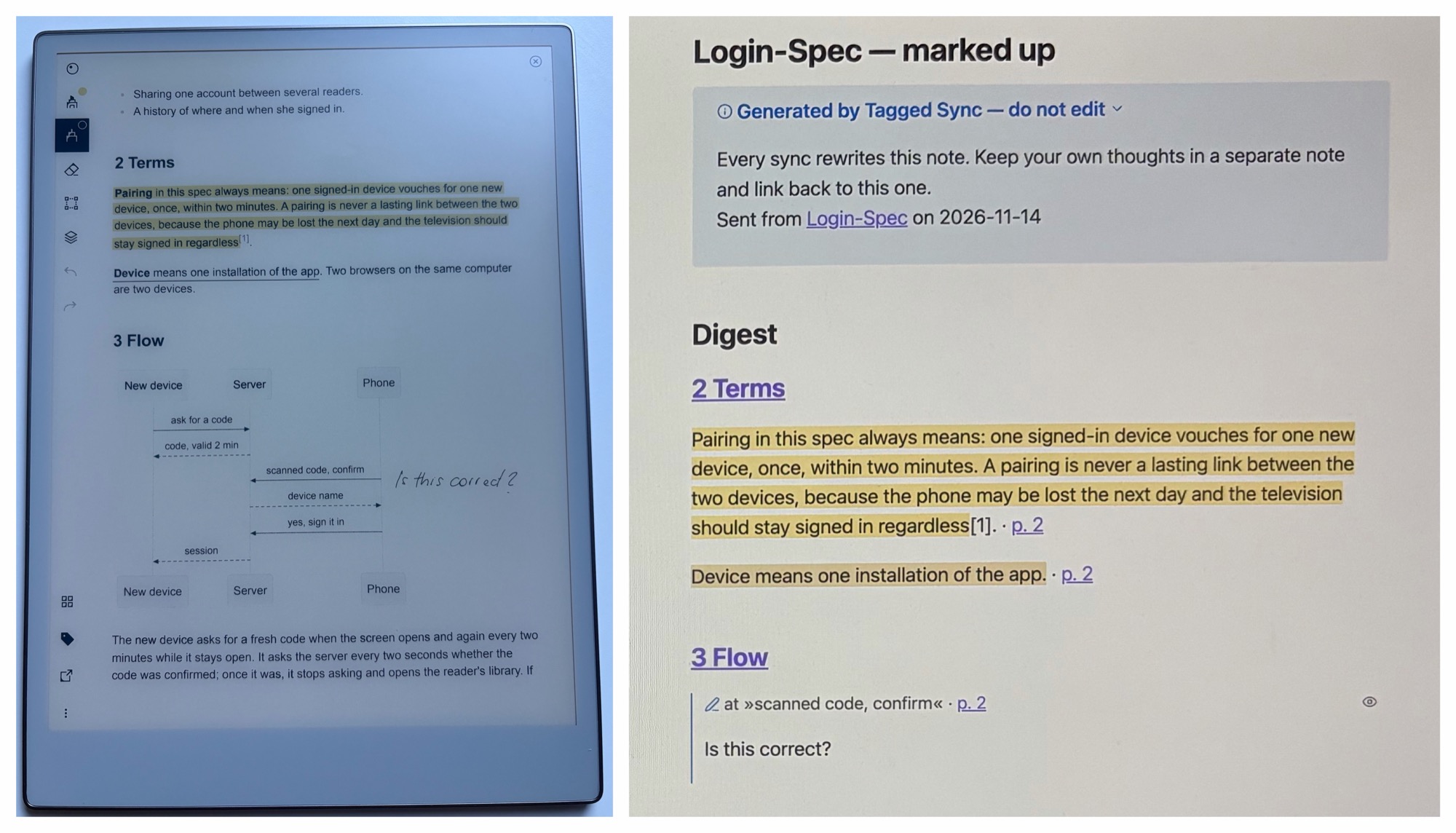
On the tablet, highlight, underline and write in the margin. Then tag the document, or any page of it, with the tag you mapped to a vault folder, and run Sync in Obsidian.
One note comes back for the whole document, whichever pages you tagged. For a note called
Login-Spec it is called Login-Spec — marked up, and it lands in your tag’s folder. In the
folded box at its top, a line says Sent from Login-Spec on 2026-11-13 and links to your note, so
your note’s backlinks find it. Each mark is quoted under the heading it sits under.
Highlights and underlines come back exactly, with the sentence around them. A short handwritten remark comes back as text, but a long one can arrive in pieces. Handwriting is read on your own machine, and only if you switch on Your notes on PDFs in the settings. If you forget the tag, or handwriting was not read because that switch is off, the sync tells you once.
Nothing is ever written into the note you sent. Rename it or move it, and the link follows.
I use this for the specs an AI writes for me. I read them on the tablet, I mark what is wrong, and the note that comes back is my review. You can hand it to whoever revises the text: yourself, a colleague, or an AI.
What happens when you send it again?
The new version goes up first. If nobody touched the earlier copy, it goes to the tablet’s trash without a question. If you wrote on it, tagged it, moved it, renamed it or pinned it, the plugin asks you, and Keep it is the default. A document of the same name that this vault did not send, such as a file you uploaded yourself, is never touched.
What does not work yet?
- You send from Obsidian on your computer. Obsidian on a phone is not supported.
- The Paper Pro Move is not in the list yet. A sent note reads best there in landscape.
- Blocks drawn by other plugins, such as Dataview, Tasks or Bases, can be missing or incomplete. Look at the first note you send.
- Embedded PDFs, audio, video and canvases are not printed. A line names the file instead.
- Chinese characters and Japanese kanji are missing on a Mac, as they are in Obsidian’s own Export to PDF. Send such a note as a PDF made with another app.
- Printing is checked on macOS. Windows and Linux use the same mechanism but have not been checked.
Sending goes through the reMarkable cloud. With Pro it also works without the cloud, straight to the tablet. Over that route an earlier copy is never replaced.
If you want to try it, install Tagged Sync for reMarkable from Obsidian’s community plugins. The FAQ has more.